¶ Introductie
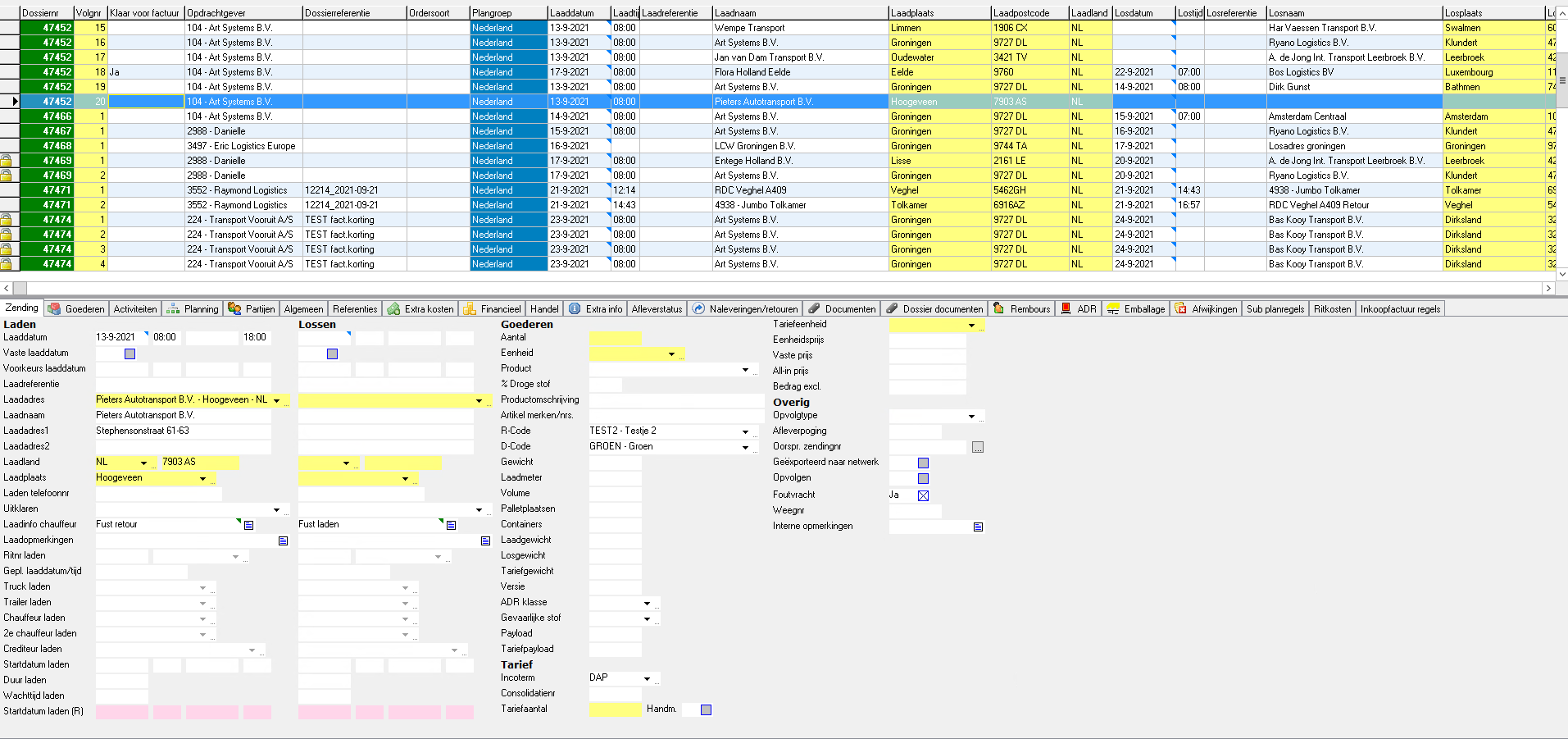
The screen Shipment processing shows an overview per shipment.
The difference with the screen Transport bookings is that in that screen you see an overview per booking.
The screen Shipment processing can be opened in two ways:
- Go to -> Transport -> Shipment processing or
- F11 -> Shipment processing
Shipment processing is mostly used to check an order before invoicing.
Through the proper use of column order and filters one can easily check whether all orders have been correctly filled out.
Reference numbers, weights, times etc. are easily added in this screen.
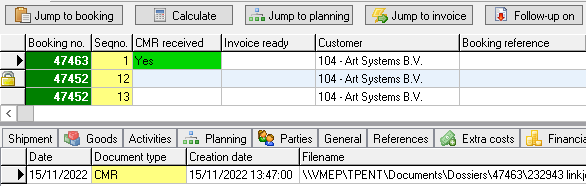
In the top left of the screen three handy buttons can be found to directly go from an order to the booking, or to jump to the trip which contains this order (or part of it), or to go to the invoice in which this shipment is placed.
In the bottom half of the screen all information is recorded, like full shipment information, goods lines, planning information, financial information, etc.
¶ Processing
Two fields from the shipment processing which are used a lot are "CMR Received" and "Invoice ready":
¶ CMR received
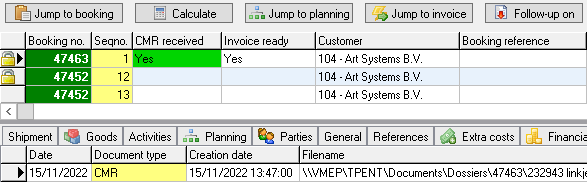
The field CMR received jumps to Yes and turns green the moment a document is added to the shipment which has the documenttype CMR/POD.
This property can be set in the screen Documenttypes by settings the column CMR / POD to Yes.

¶ Invoice ready
An order can only be collected on an invoice when Invoice ready has been set to Yes.
The person checking this order can set this to Yes after checking the order.
¶ Selection

In the top of the screen a selection on date can be made. Click on the green triangle to adjust the selection to day, week, month, period, or year. Through the green arrows the selection can be adjusted. Click on the date itself to manually fill in a date.
Click on the begin- and enddatu to fill in a custom date range (for instance 15 days). This range is added to the pop-up menu of the green triangle.
This range can be removed by choosing it, and then clicking on it.
Because the screen Shipment processing is meant for the financial processing of orders, the date selection is on the financial date of the shipment
Besides the date the image above shows All. With this selection you can, besides date, also filter on other things, like for instance Plangroup.
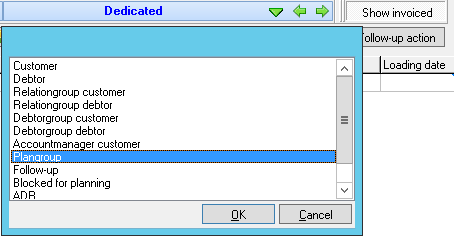
It then is possible to only show shipments belonging to a certain plangroup.
It is also possible to view shipments belonging to one certain customer.
The choice All isn't remembered by Transpas.
When All is chosen and the screen is closed, Transpas will select the last chosen customer the next time the Shipment processing is opened.
Settings Date selection
In the screen Companies on the tab sheet Transport -> Transport parameters
there are 3 options which influence the visibility of the date filter:

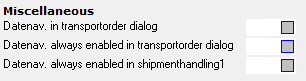
When you set this to Yes, the date filter is always visible.
Otherwise it is only visible when Show invoiced is turned on.
For an overview of orders per trip, read more on Shipment processing 2: