In Transpas it is possible to create templates for transport bookings and shipments. This saves time during order entry, because an entire order can be entered with just a few mouse clicks.
This is done through the screens Transportbooking templates and Shipment templates:
Main files -> Transport -> Transportbooking templates
Main files -> Transport -> Shipment templates
¶ Transportbooking template
¶ Creating an order based on a transport booking template
An order based on a transport booking template can be created in the Transportbooking screen, via the action Import template booking:
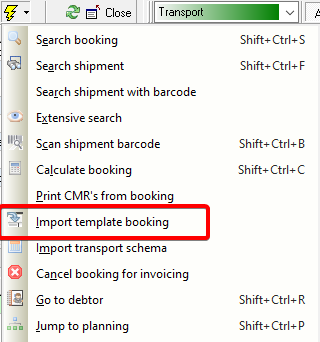
The action first asks which customer it concerns and then shows all transport booking templates that have been created for this customer.
After a choice has been made, a new booking is created.
¶ Creating a new transport booking template
Main files -> Transport -> Transportbooking templates
Creating a new Transportbooking template is done in the same way as creating an order.
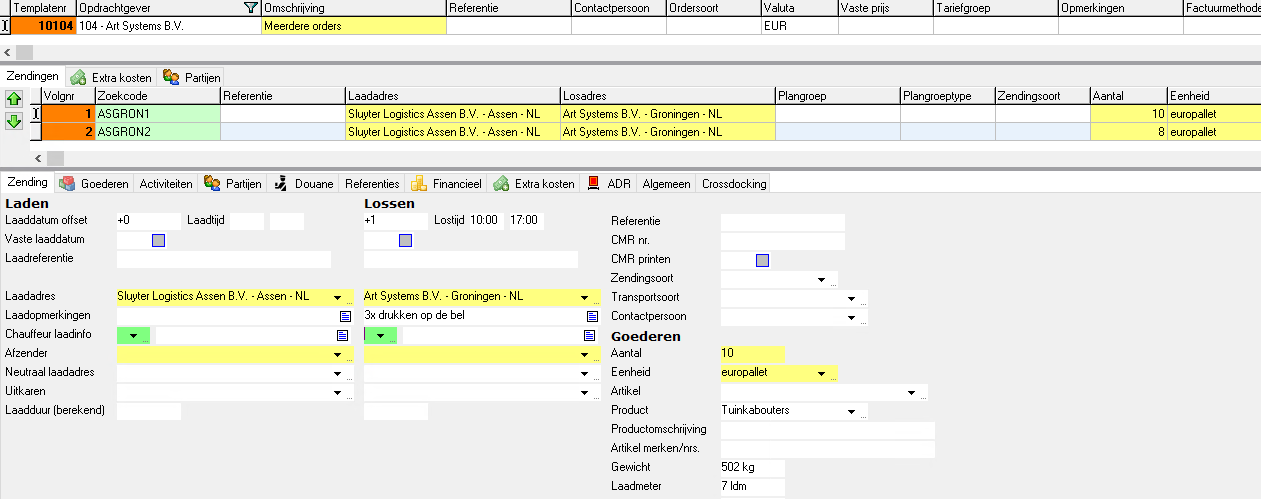
In the screenshot above, a standard transport order has been created with 2 shipments.
Some of the most important settings are highlighted below. Take a good look at the possibilities this screen offers.
Template number (top line)
| Customer | The client to whom this standard transport order applies |
| Order kind | Automatically enter an order kind on this booking |
| Tariff group | A tariff group can be entered here if it differs from other orders for this customer |
| Fixed price | A fixed price for this booking |
| No invoice | If this is checked, the booking will be canceled for billing |
Shipments tab
Most settings are self-explanatory: what is entered here for loading address, unit, product, etc. is also entered in the shipment.
| Loading date offset | If this is empty, the loading date will be today. For example, enter +1 here to ensure that the loading date becomes tomorrow's date (This also applies to the unloading date offset.) |
| Block planning | Shipment is canceled for planning when creating |
| No crossdocking | If shipments for this customer are normally cross-docked, an exception can be made for this shipment by checking this setting |
Extra costs tab
Extra costs can be entered here that will be automatically added to the booking during creation.
Goods tab
Just like shipments, goods can also be entered so that they are automatically created when an order is created based on this transport booking template.
Financial tab
| Fuel surcharge / Mautsurcharge group | If something is entered here, this group will be included in the shipment. A check mark is then placed next to fuel surcharge manually or fuel surcharge manually |
¶ Shipment template
Each shipment created with a transport booking template can also be found in the shipment template screen.
Main files -> Transport -> Shipment templates
It is possible to only create a shipment template in the Shipment Template screen.
In addition, a shipment template can be added to a new shipment in an existing booking.
¶ Adding to an existing booking
A shipment template is added to an order by creating a new shipment and double-clicking on the green field Shipment template (click + space bar also works):

A lookup screen with the available shipment templates opens:
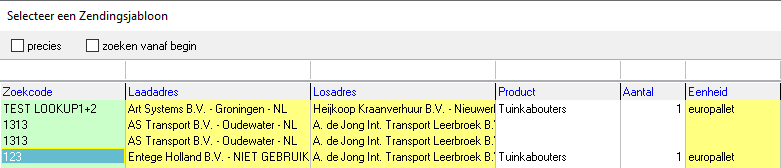
This search screen shows, among other things, loading address, unloading address, quantity, unit, etc. When a template is chosen, the information is filled in for this order.