Within Transpas, HTTP requests are used for various interfaces, like on-board computers, financial administrations, order imports, status exports and more. These are requests that go over the internet, as opposed to file interfaces. The web interface used to communicate is also known as an API.
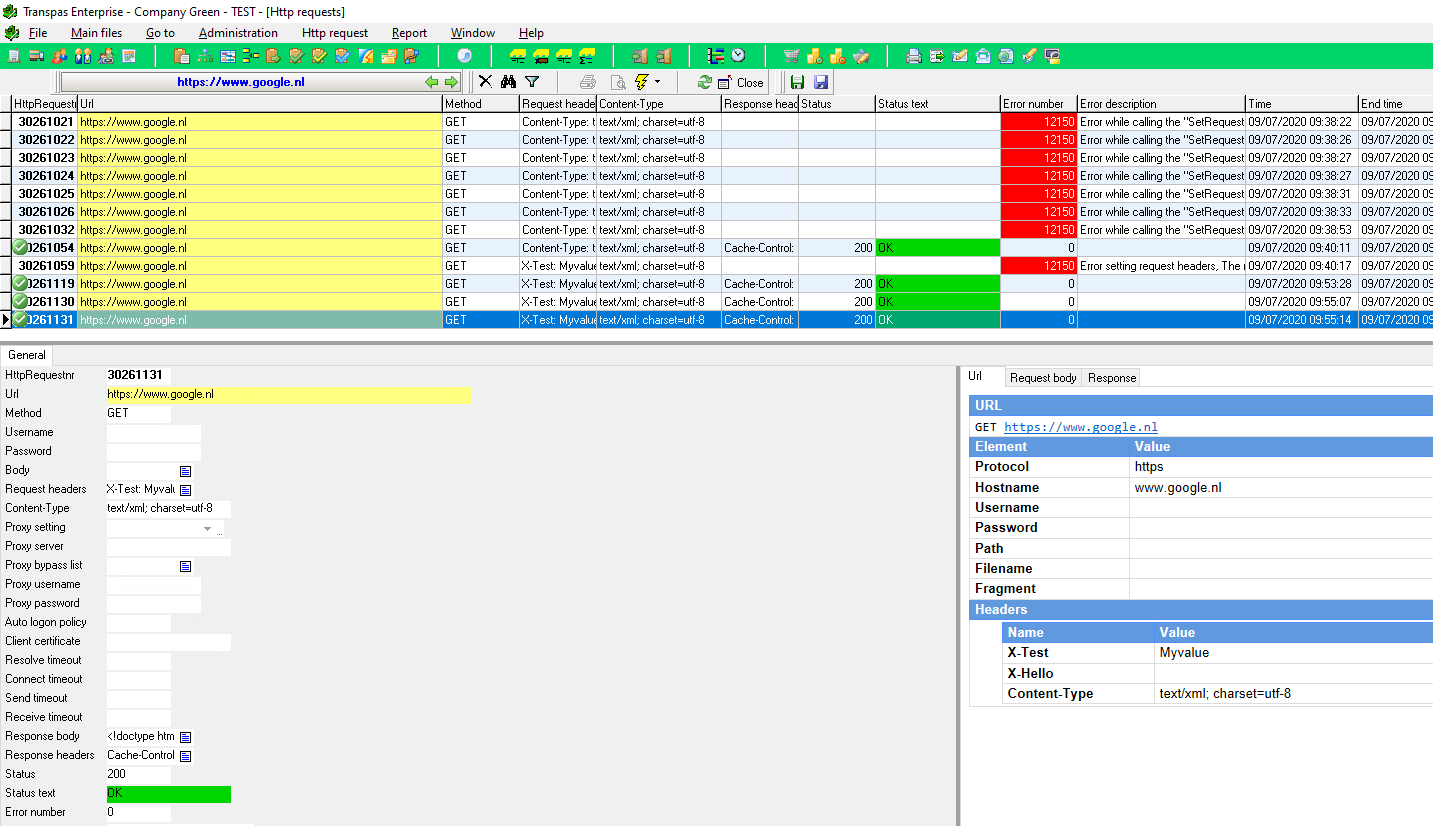
The HTTP requests made can be viewed in Transpas in the screen of the same name: F11 -> HTTP Requests.
You can view both the request and the response via the tabs at the bottom right. On the tab Request body the sent XML can be viewed. Under the Response tab the response XML can be viewed.
¶ History
The last 250 requests are kept per host.
Specific requests can also be saved by setting the Do not purge column to Yes.
These requests are then not automatically cleaned up and are not counted in the last 250 requests.
¶ Status
When the server responds, the HTTP status code is filled in the Status column.
These status codes are divided into five categories.
Depending on the category, the column Status text is given a corresponding color:
| State code | Status color | Category |
|---|---|---|
| 1xx | Blue | Informational |
| 2xx | Green | Successful |
| 3xx | Orange | Redirection |
| 4xx | Red | Client error |
| 5xx | Red | Server error |
If the server cannot be reached or if an error occurs while sending or processing the request, the Status and Status text columns will remain empty. The error message is then filled in the Error description column.
¶ Save
When debugging a problem, it can be useful to be able to send the exact request or response to the API supplier. At the top of the HTTP Requests screen you will see two floppy disk icons.
The green icon on the left saves the request in XML format.
When saving, the file extention must also be specified.
Enter, for example, request.xml and press Open.
The right blue icon saves the response in XML format.
Here the file extention must also be specified.
Enter, for example, response.xml and press Open.