The screen settings of Transpas Enterprise are stored for each user separately. What is stored are the order and the size of fields in grids, and the location of screen separators, also referred to as splitters. The settings are stored the moment that Transpas is closed and are applied when a screen is opened.
¶ User settings
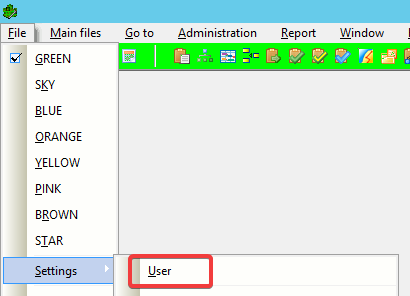
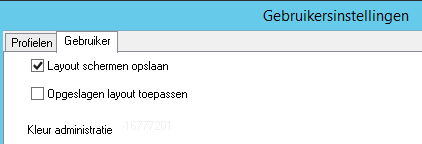
Before the settings are stored you will have to tick the box before Layout schermen opslaan (found under File -> Settings -> User).
Without this setting new changes in screens are not saved.
Before a change in this screen becomes active, Transpas will have to be restarted.
The setting Opgeslagen layout toepassen indicates whether a saved layout should be applied then the screen is started. Just like the setting Layout schermen opslaan this setting will only be active when Transpas is restarted. This setting in general should be ticked, otherwise screen will start without any user-specific settings.
¶ Reset Screen settings
Sometimes changes to screens aren't stored properly anymore and therefor will also not be applied correctly when starting a screen. To correct this the setting Opgeslagen layout toepassen can be turned off, but Layout schermen opslaan will have to remain ticked.
Remember to restart Transpas after making these changes.
After restarting the screen where the problems occur can be started, this screen will then lose all its userspecific settings. After opening the screen, tick the box again and restart Transpas. After this the screen can be changed as you like.
When some screen are started automatically through the user settings (see below) these screen will also lose all user-specific settings.
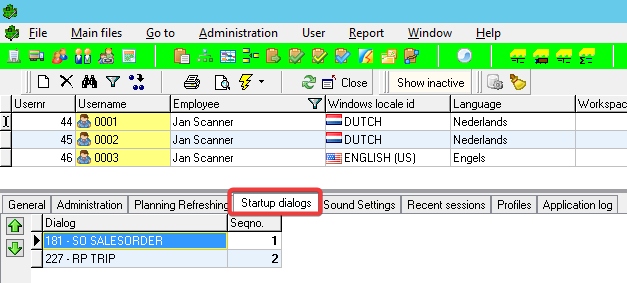
Therefore you should remove these screen from the tab sheet Startup dialogs.
In summary these are the steps to take:
- Remove the tick from Opgeslagen layout toepassen en check whether Layout schermen opslaan is turned on
- Check for screen in the tab sheet Startup dialogs
- Restart Transpas
- Open the screens that are causing problems
- Tick the box at Opgeslagen layout toepassen
- Restart Transpas
¶ Copy settings
Through the screen users settings from one user can be copied to another.
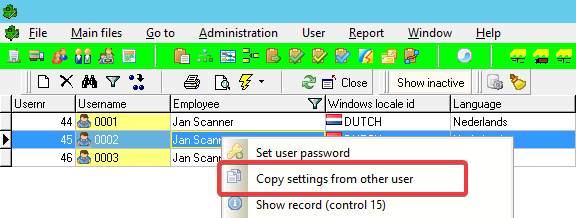
For this you can right-click on the user and choose the Copy settings from other user action.
¶ Delete user settings
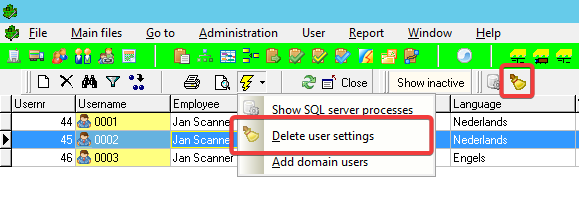
When resetting the screen settings doesn't solve the issue you can, as a last resort, delete all screen settings of a user. Another user will have to do this, otherwise the screen settings will be saved when closing Transpas. When you apply this action on the user profile with which you are currently logged in, nothing will happen, so make sure the user is logged out of Transpas before deleting the user settings.
¶ Create Dummy user
It can be useful to create a dummy account/profile for certain functions. On this you can record settings so you can simply copy settings to a new user or when a profile has been corrupted by using the Copy settings from other user action.
When creating a dummy user you have to take into account that the settings from an active user or not recorded until you shut down Transpas. Therefore it is not possible to change the settings and copy them before shutting down Transpas.
In summary these are the steps to take:
- Check boxes at the user settings
- Restart Transpas
- Apply settings
- Restart Transpas
- Create dummy user
- Copy settings by right-clicking Copy settings from other user
¶ Apply settings from dummy user
When applying the settings from a dummy user you cannot apply these to the active user. Say you want to use the settings of this dummy user, another user will have to apply these. The user which receives the settings also has to be logged out of Transpas, because the settings are recorded when closing Transpas.
- Check boxes at the user settings
- Close Transpas
- Copy the settings from the dummy account through the Transpas of another user
Check if no one is logged in with the dummy account or with the account that should receive the new settings. - Restart Transpas